Managing RStor Shares
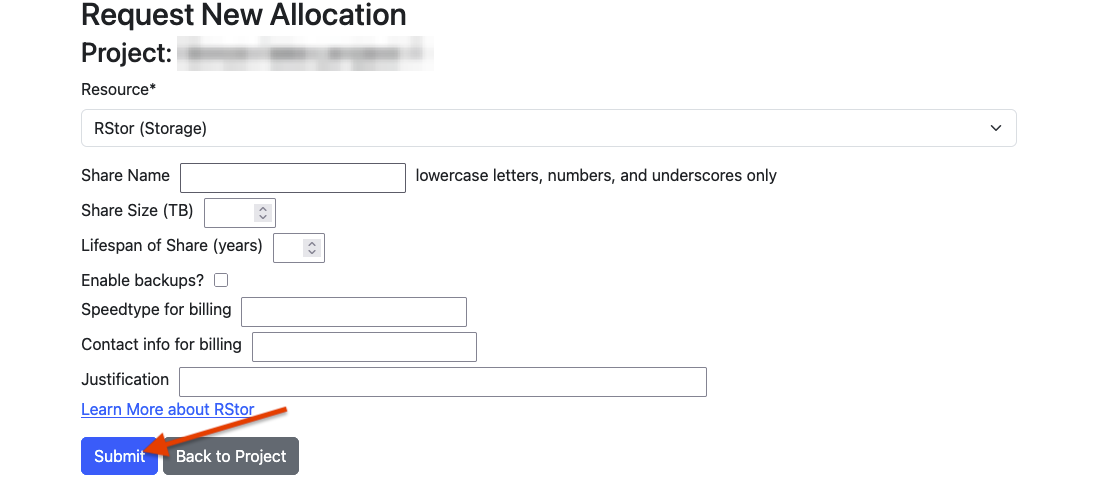
Before requesting an RStor share, you must be a principal investigator (PI). You should also know how much storage you need, how long you need it, whether you want that storage backed up, and the speedtype you will use for payment.
In the Allocation Portal, RStor is considered a resource. An RStor share is an allocation. In this document, share and allocation are used interchangably. For more information, see the Allocation Portal documentation.
Register in the Account Portal
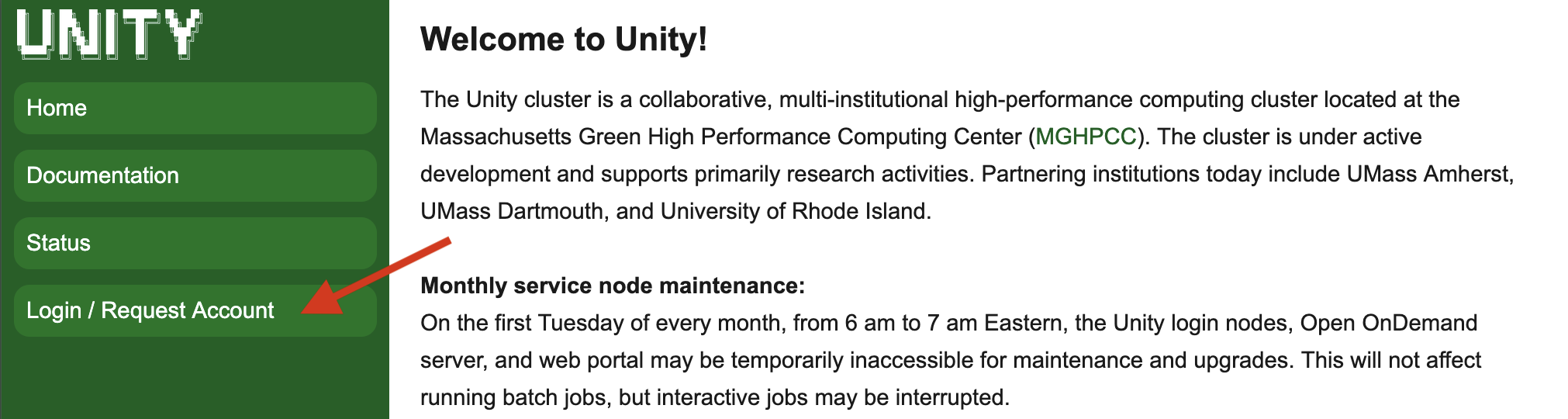
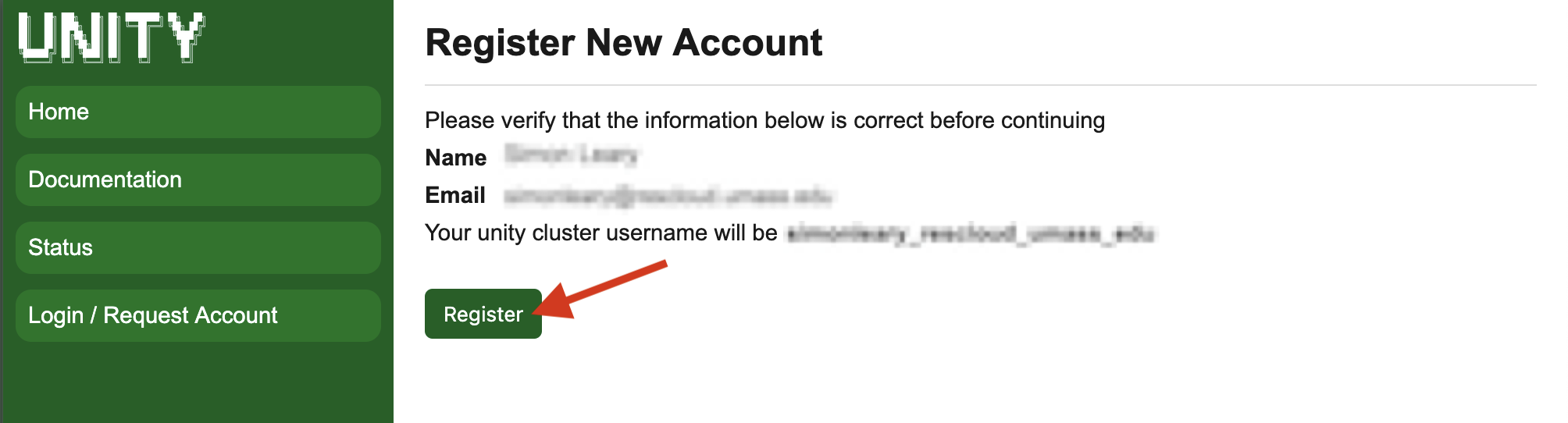
If you don’t already have a Unity account, register for one using the Unity Account Portal. After registering, wait at least 30 seconds before continuing to the next step.
Become a PI in the Allocation Portal
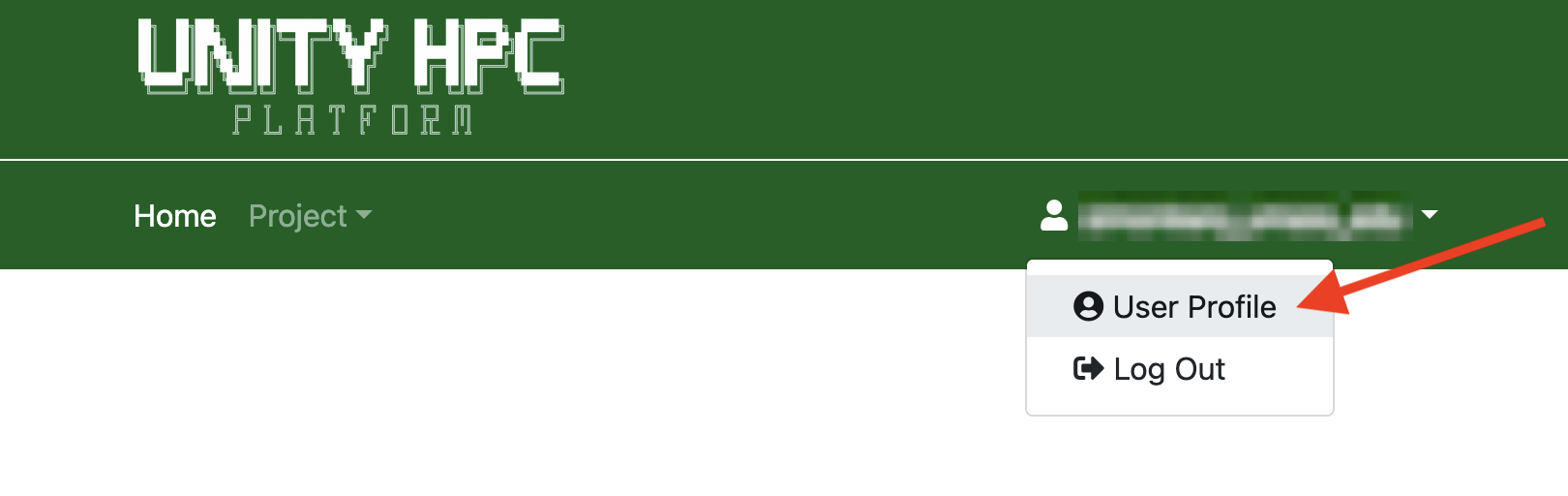
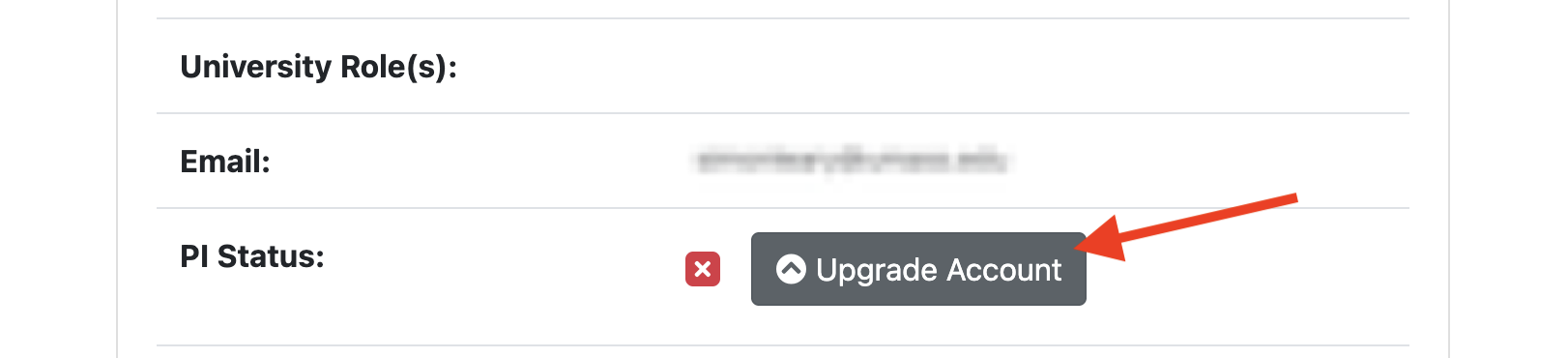
If you don’t already have a Unity PI group, go to the Allocation Portal and request PI status. Unity staff will review your request and then you will receive confirmation by email. If your request is approved, you will see a green check mark.

Create a Project
If you are already the owner of a Unity PI group, you should see a “PI group” project:
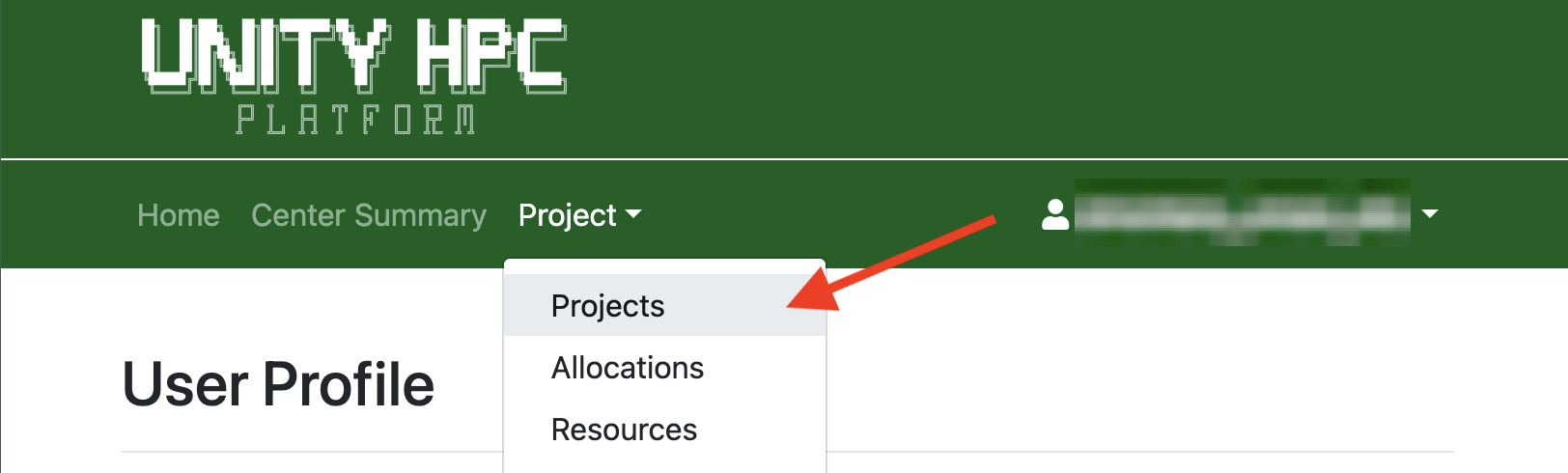

If you don’t already have a Unity PI group, create a new project. Enter your project’s name, description, and field of science, and then save.
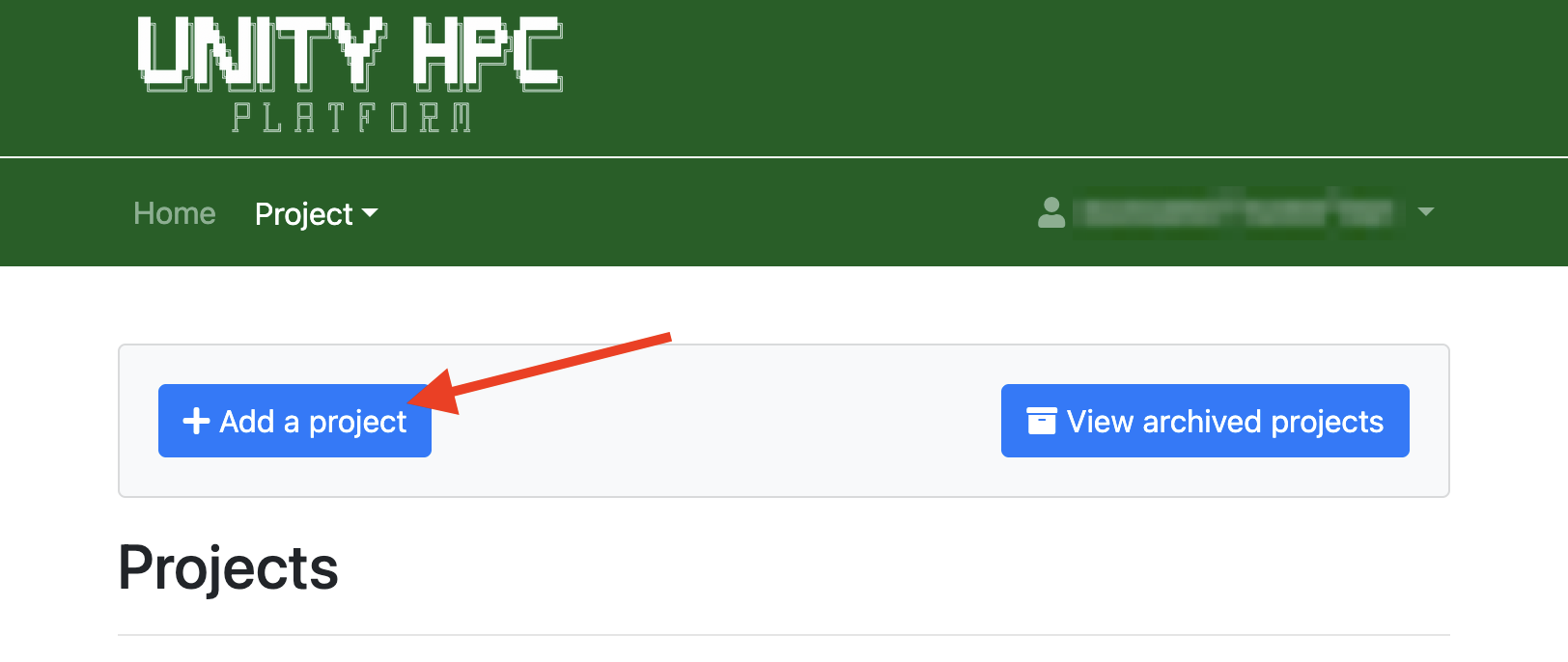

You may create multiple projects, but this is not necessary for most users. To learn more about projects, see the Allocation Portal documentation.
Create an Allocation
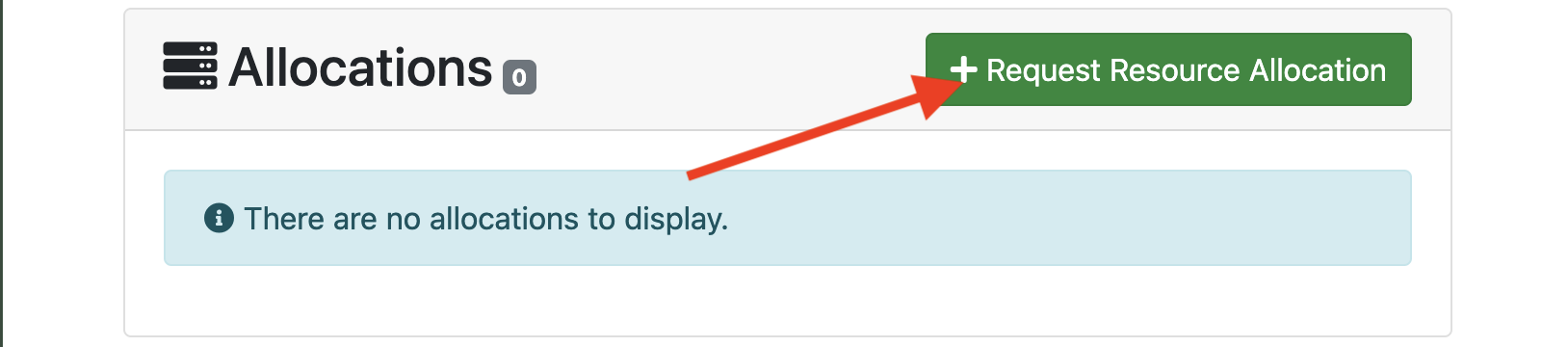
In the Allocation Portal, create an allocation and select RStor as the resource. Fill in all the form fields.
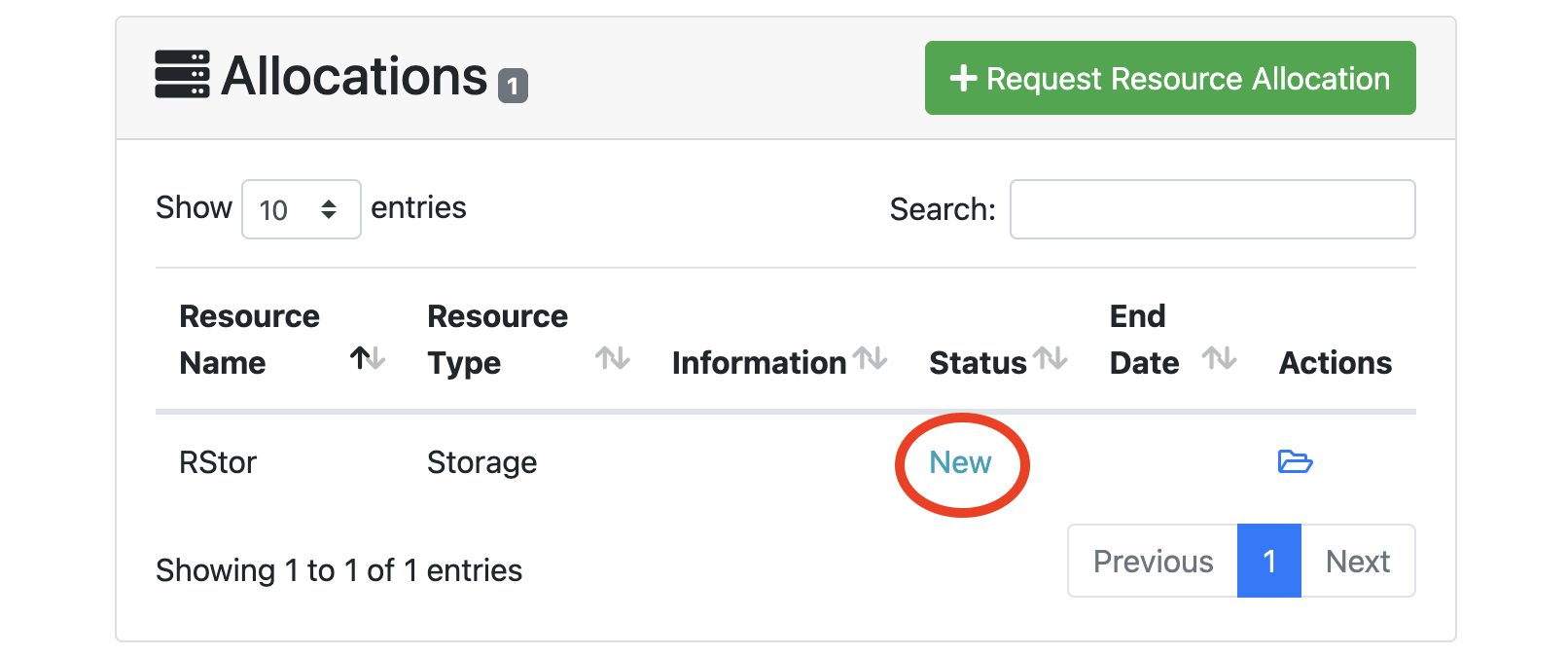
After you submit, the allocation status will appear as New.
The Unity staff will review your request and notify you by email.
Once your request is approved and payment is received, the allocation status will change to Approved, then shortly after it will change to Active.
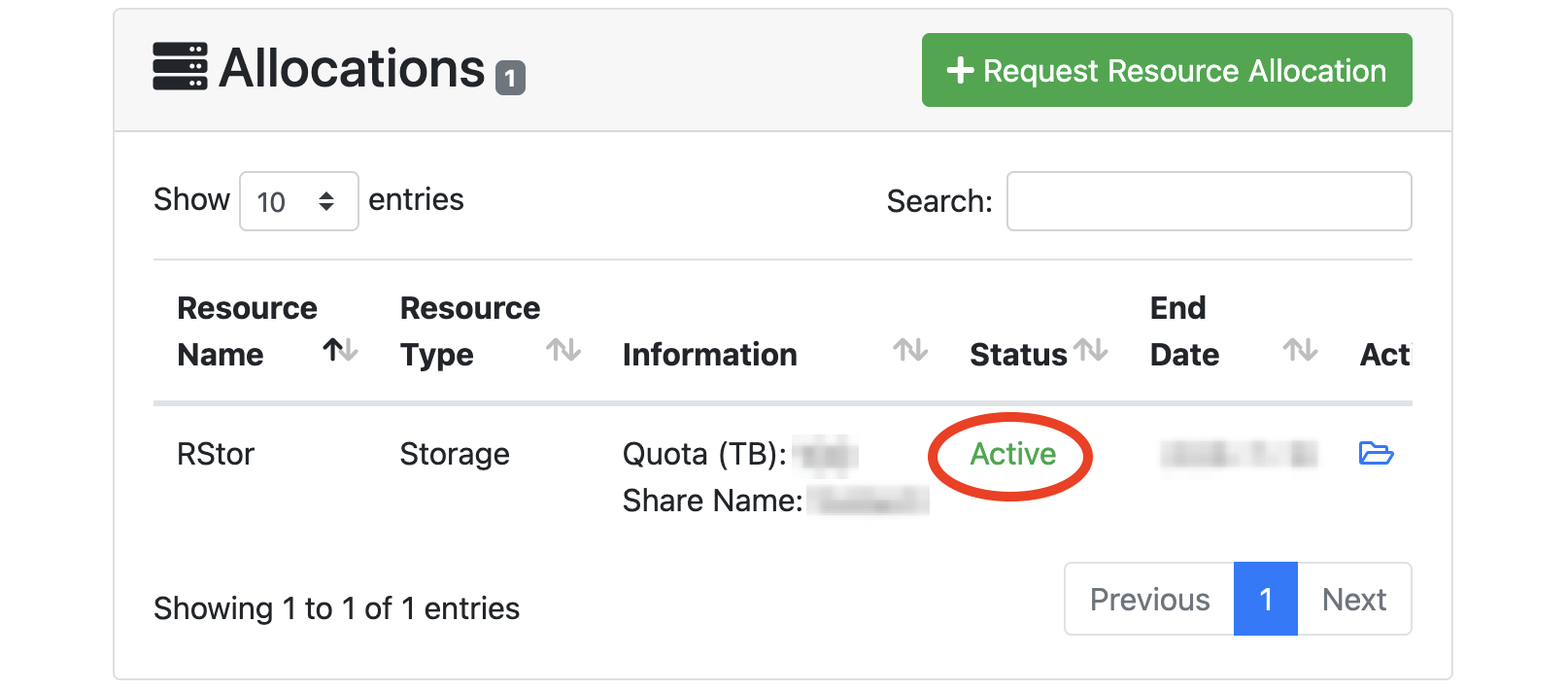
Once your allocation is Active, your RStor share should be ready within approximately 15 minutes. See the Usage page for instructions on how to use it.
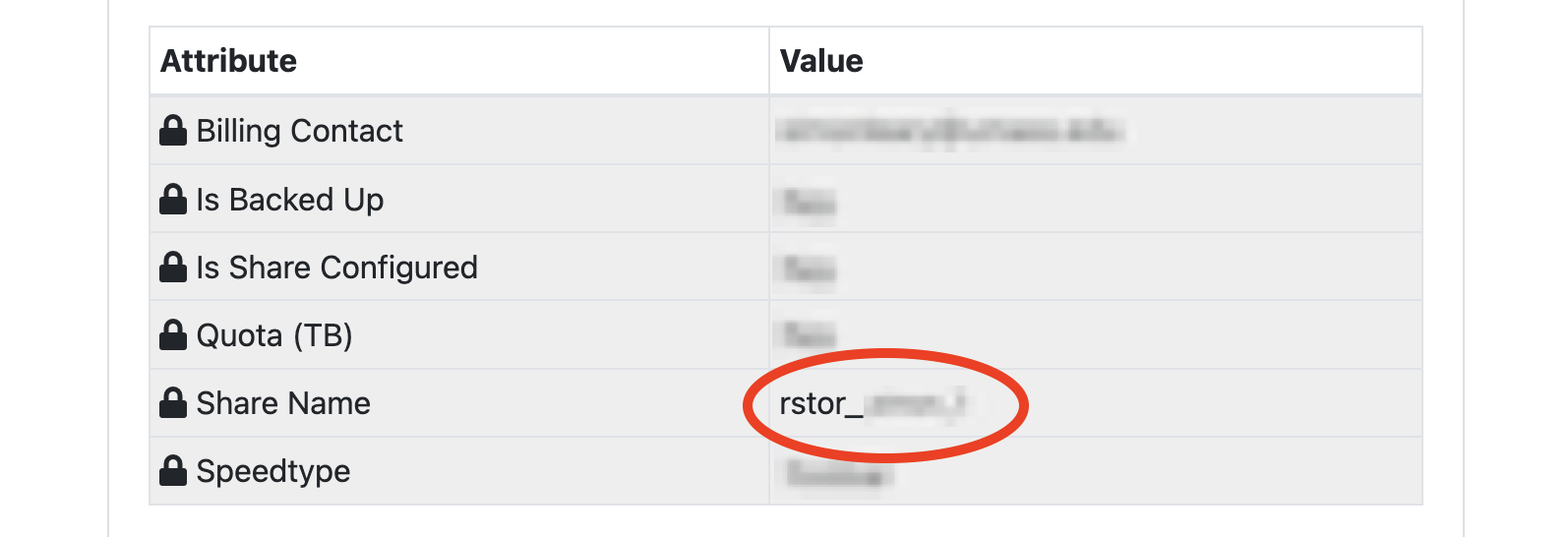
To find your share, you will need to know your share name. To look it up, open your allocation and review its attributes:
Allow Other Users to Use Your Allocation
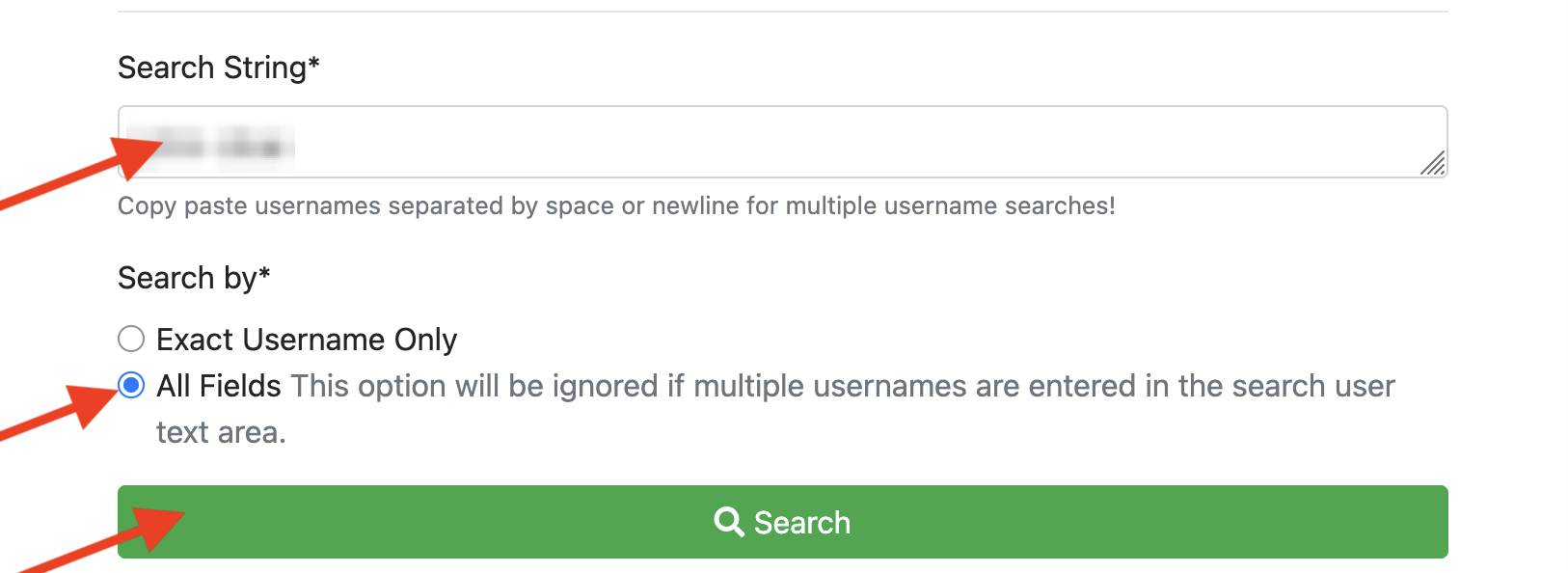
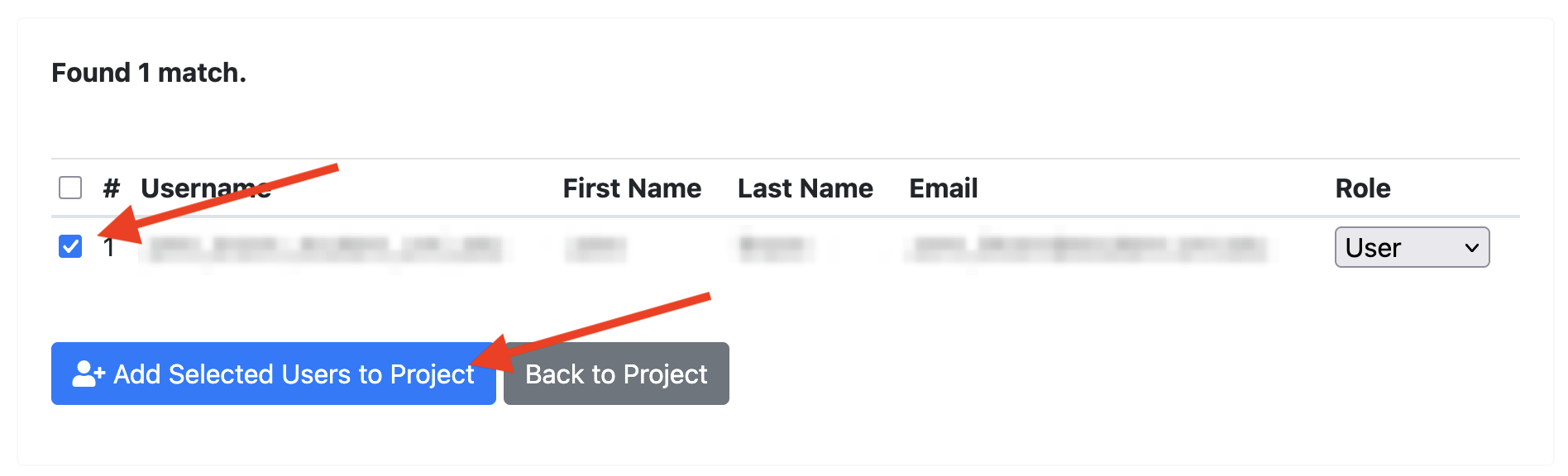
To grant access to other users, add them to your project in the Allocation Portal.
If a user does not have a Unity HPC Platform account, have them complete the instructions at the top of this document, under Register in the Account Portal. Once they register, you should be able to add them immediately.
If you need to add a large number of users in bulk, contact us in the Unity User Community Slack or in one of our other support channels.
After adding users, allow up to 15 minutes for changes to take effect.

Disallow Other Users from Using Your Allocation
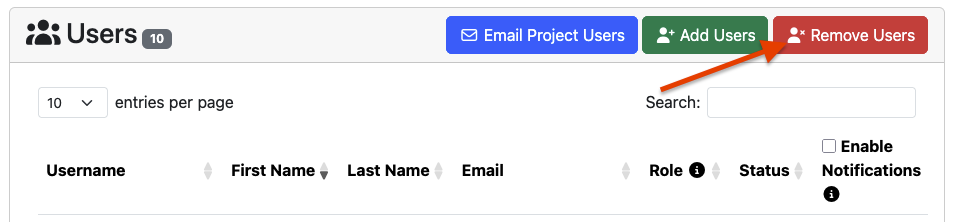
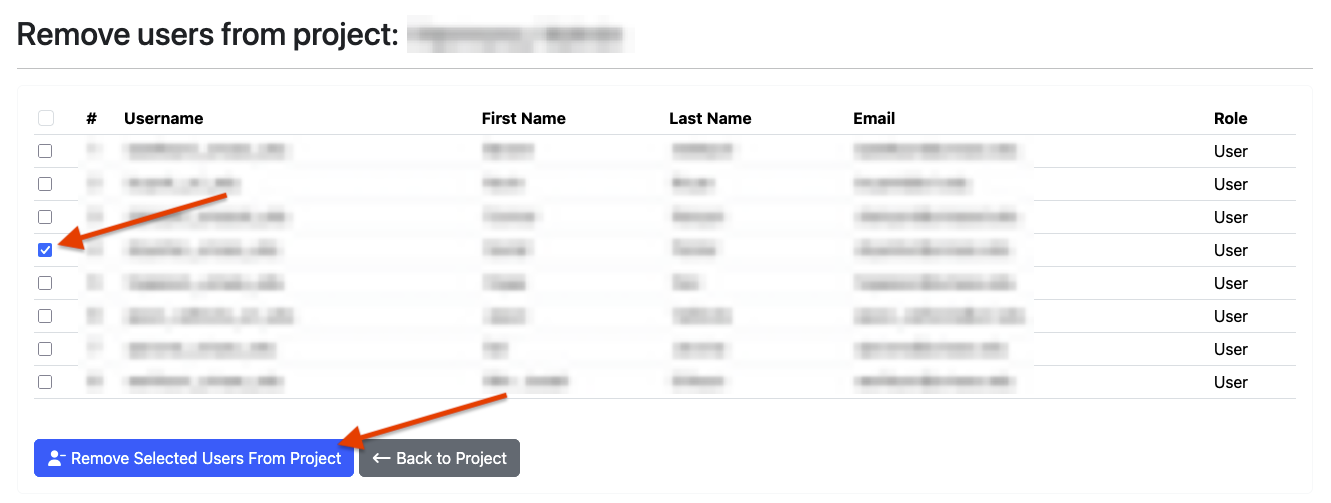
To revoke a user’s access, remove them from your project in the Allocation Portal.
After removing users, allow up to 15 minutes for changes to take effect.